How do I integrate my Shoeboxed and Salesforce accounts?
Here’s How:
Step 1. Log into your account and click on Receipts.

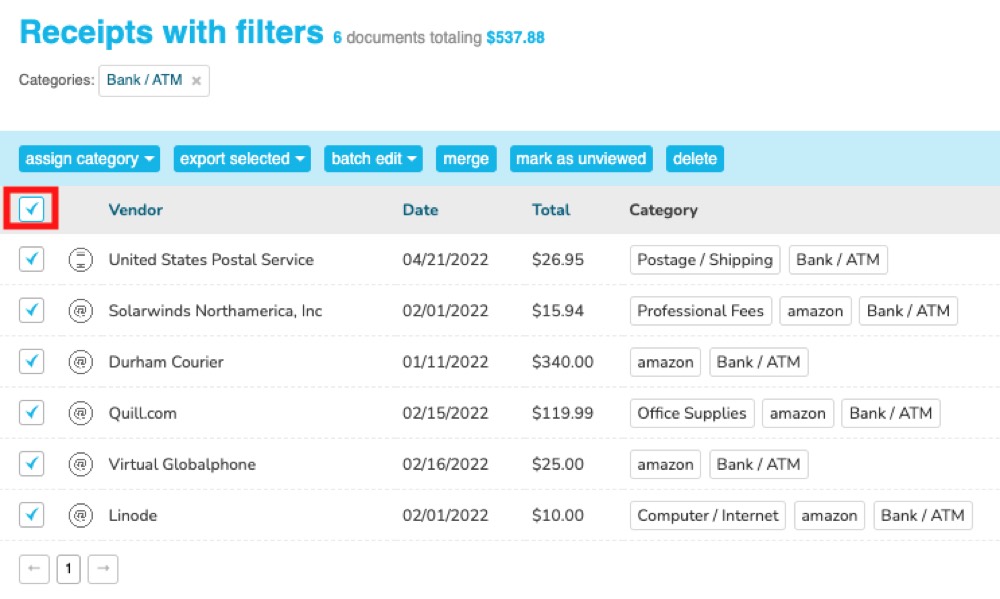
Step 2. To create a report containing all receipts, click on the first tick-box next to the Vendor column
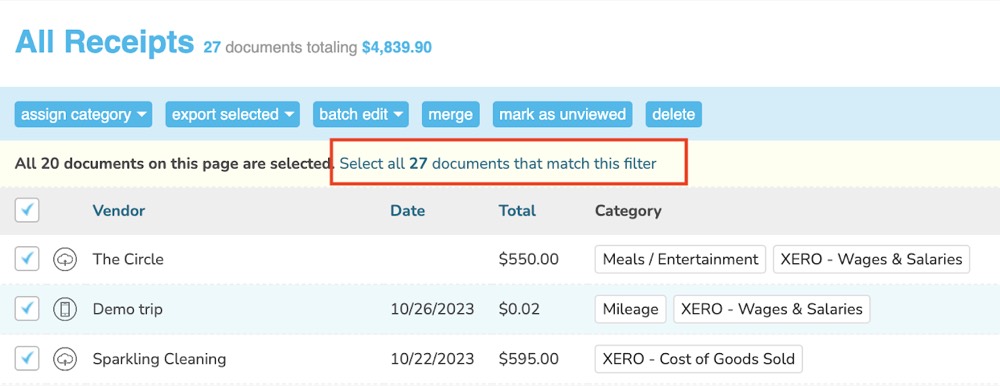
Step 3. Click on the link Select all X number of documents that match this filter
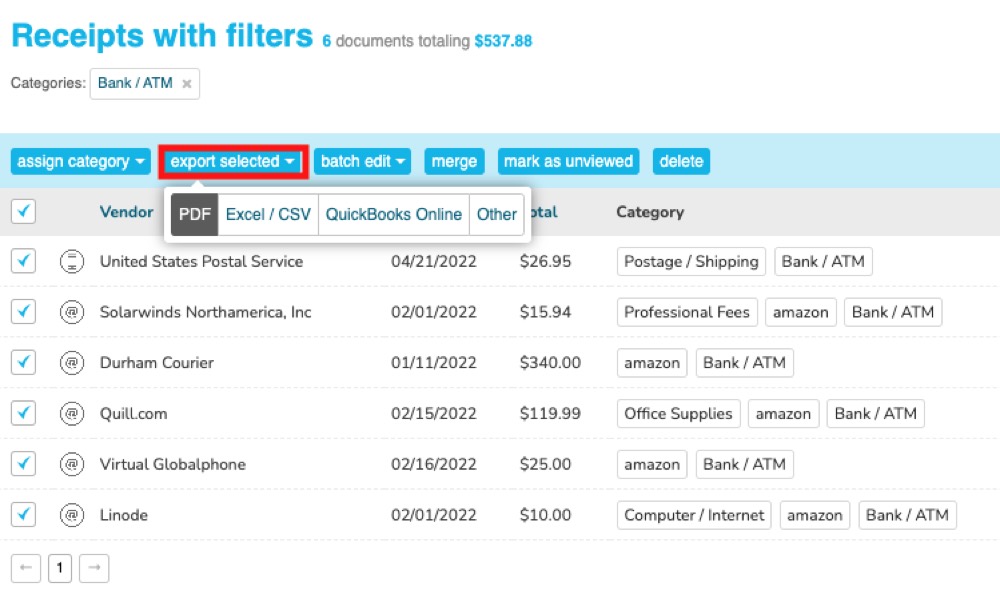
Step 4. To create a report containing only select receipts, use the filters as usual or simply select the checkboxes next to the receipts you want to export, then select export selected
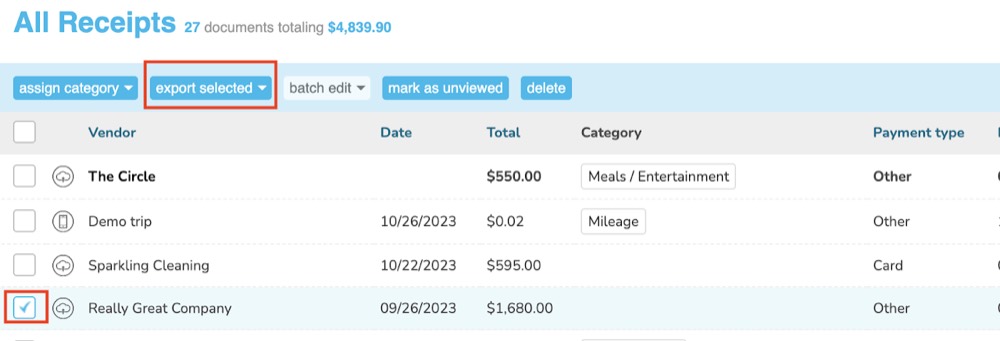
Step 5. Choose export selected then CSV
Import as Leads
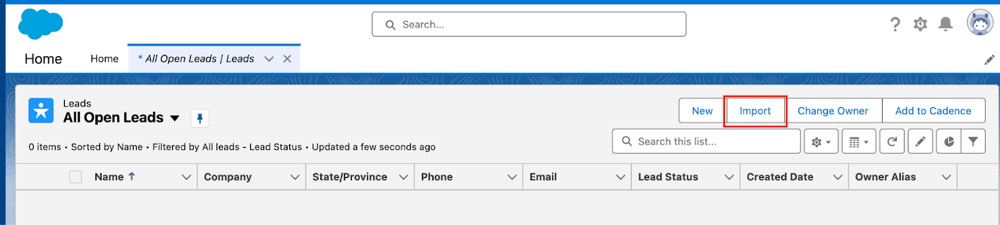
To import as Leads, go to the Leads tab in Salesforce and select Import to import your contacts.
Import as Companies & Contacts:
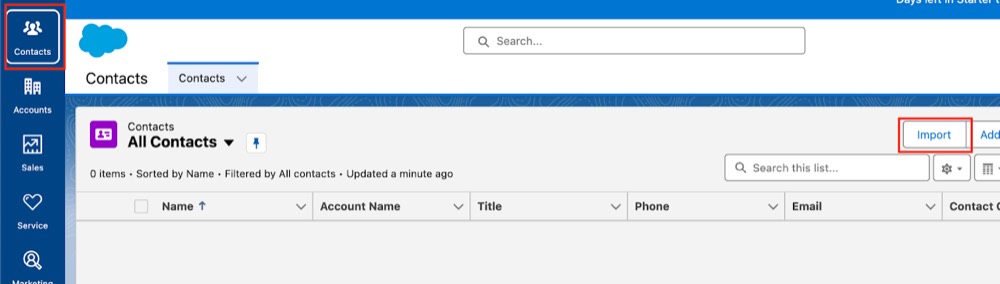
To import as Companies & Contacts, go to the Contacts tab in Salesforce and use the Import Wizard to import your contacts.